Create an appointment
How to book a client manually in Fyveno, including a new client, and how to create recurring appointments.
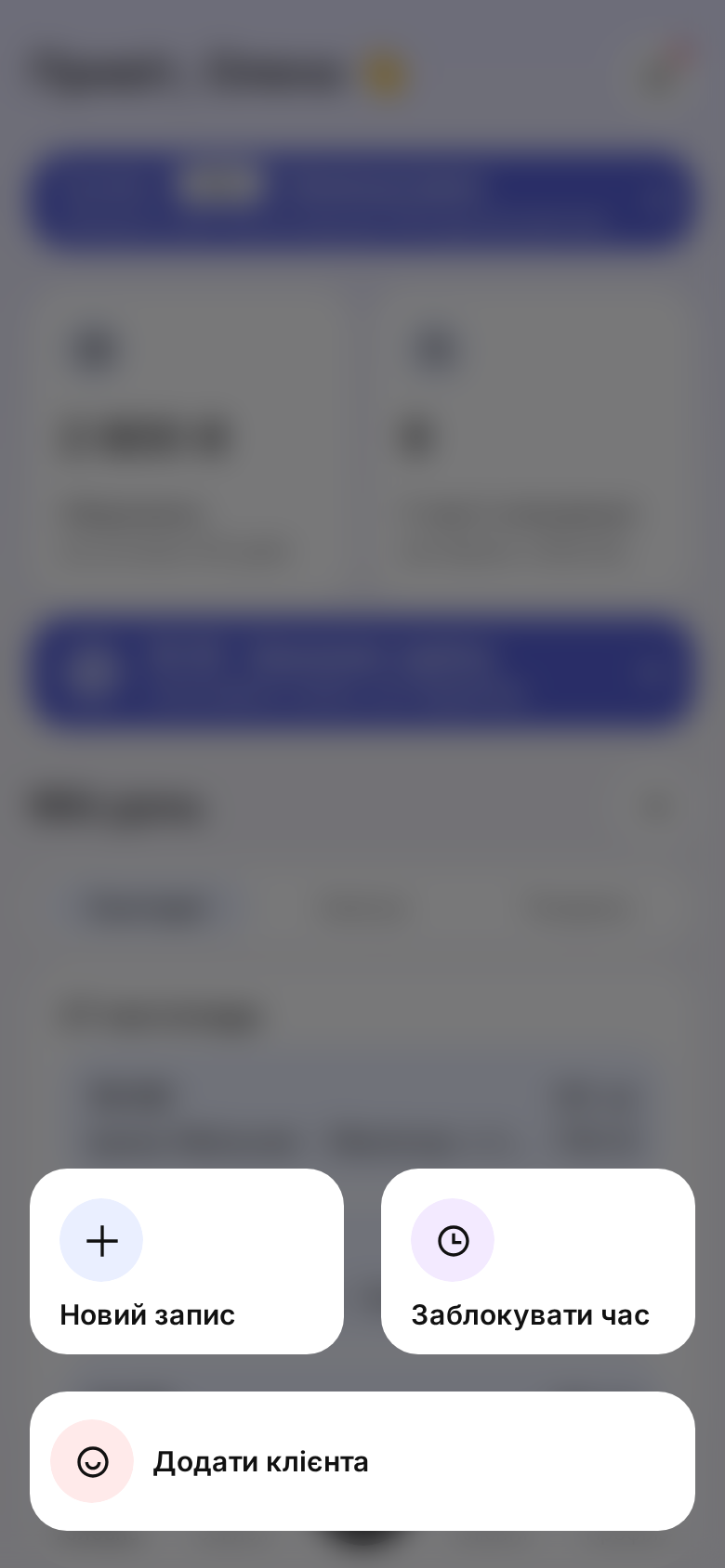
Appointments that clients book online appear in Fyveno on their own. This page covers booking a client manually, for example when they message or call you.
Create an appointment
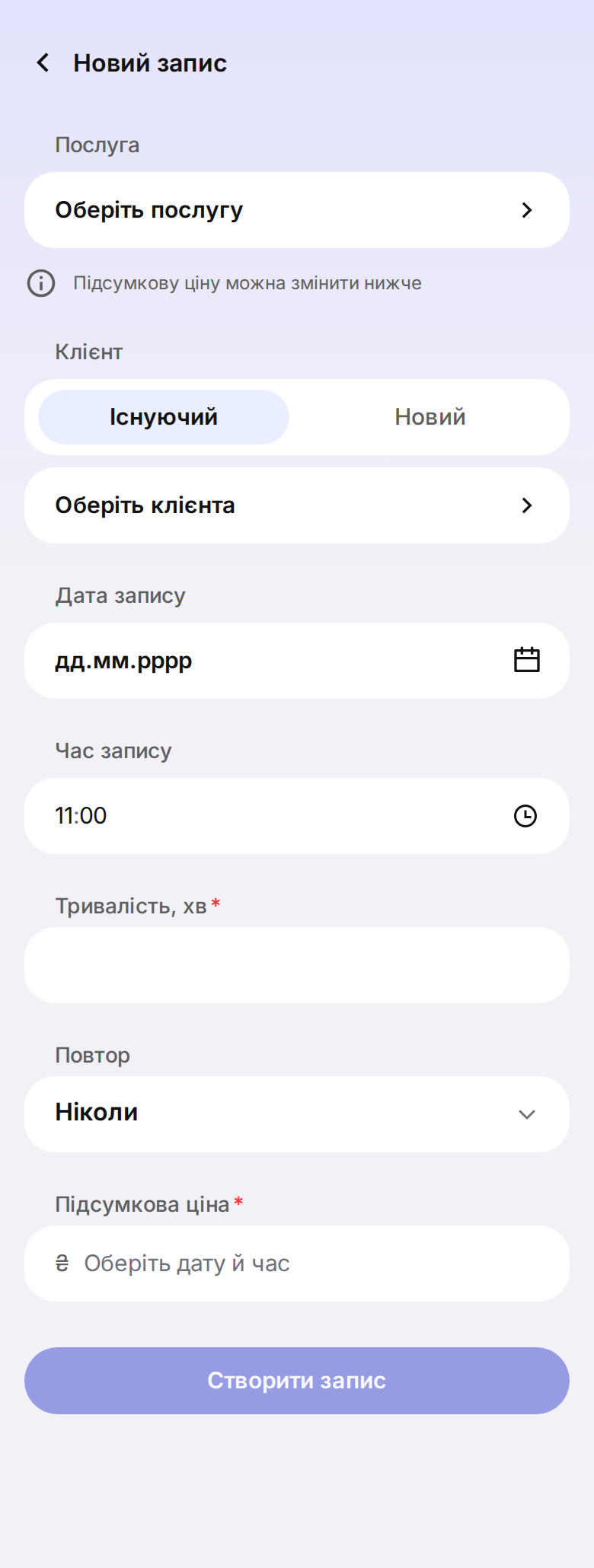
Choose a service
Tap Choose a service and pick one from the list. Each service shows its price and duration. If a promotion applies to a service, you’ll see it too.
Choose a client
- Existing — tap Choose a client and find them by name or phone.
- New — enter the Client name and Client phone. The client profile is created together with the appointment.
Set the date and time
Fill in Appointment date and Appointment time. The calendar marks days that already have appointments and shows free time for the chosen service.
Duration, min comes from the service. You can change it for this appointment if needed.
Check the price and create
Fyveno shows the Total price. It takes special prices for the chosen date and time into account. Tap Create appointment.
Recurring appointments
If a client comes regularly, create several appointments at once:
- In Repeat, choose a rule: Daily, Weekly, Every 2 weeks, Monthly, On selected weekdays or On selected dates.
- In How many appointments to create?, enter the number including the first one. For example, 4 means four appointments by the chosen rule.
- Tap Create appointment.
If some of the appointments can’t be created (for example, the time is already taken), Fyveno shows how many were created. You can create the rest with Create the rest.
Why an appointment isn’t created
| Message | What it means |
|---|---|
| This time is already taken | Another appointment is booked at this time. Choose a different time. |
| This time is blocked | You’ve closed this time for bookings. |
| The FREE limit for this month is used up | The FREE plan allows 30 appointments a month. See FREE and PRO plans. |
| No services available for booking | Add a service first: Profile → Services. |