Appointment statuses
What the New, Confirmed, Completed, Cancelled and No-show statuses mean, and how to complete, cancel, reschedule or correct an appointment.
Every appointment has a status. You can see it in the Appointments list and in the appointment details.
| Status | What it means |
|---|---|
| New | The appointment is created; the client hasn’t confirmed the visit yet. |
| Confirmed | The client confirmed they’ll come. |
| Completed | The visit took place. Either its time has passed or you completed it manually. |
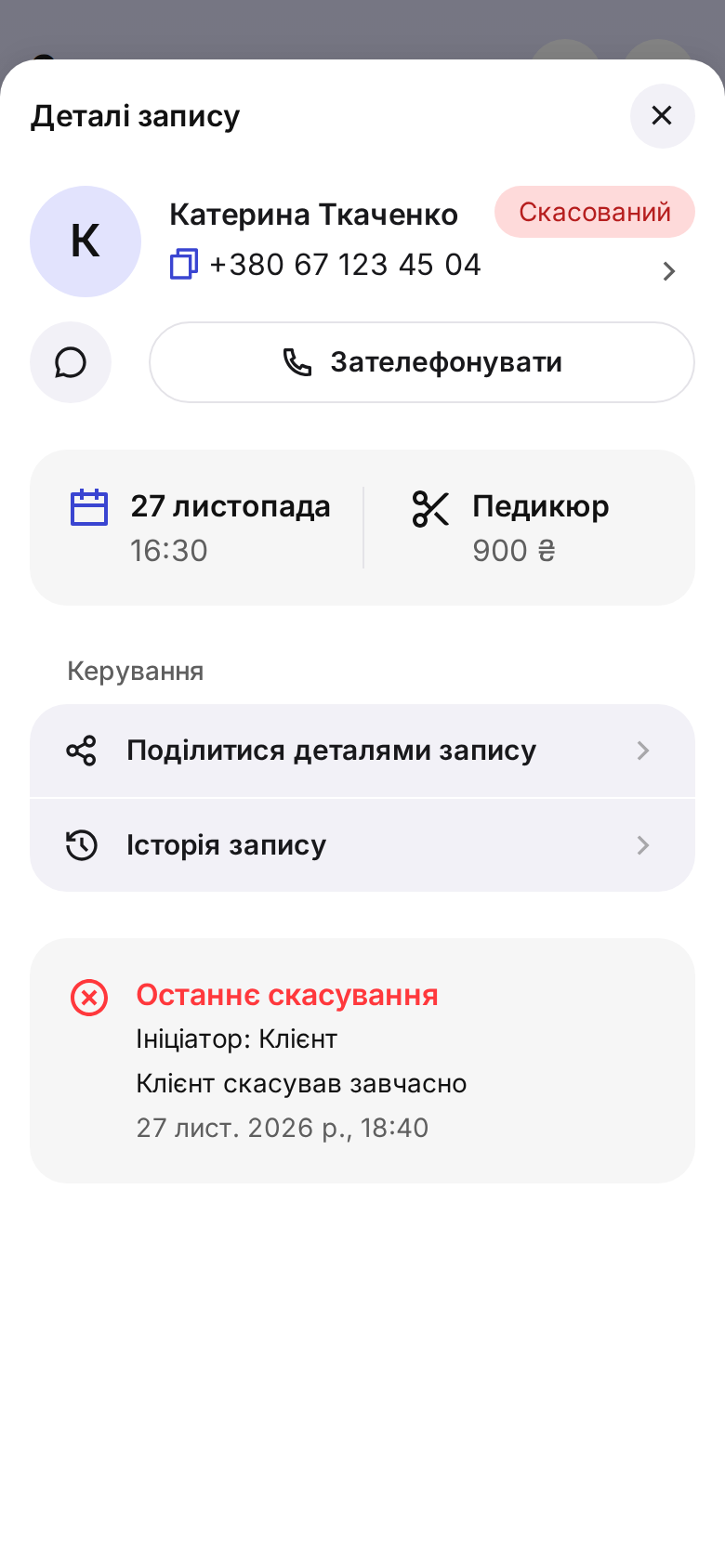
| Cancelled | The appointment was cancelled by the client, by you or by the system. |
| No-show | The client didn’t come. |
New and confirmed appointments are active: they take up time in your schedule.
Appointment details
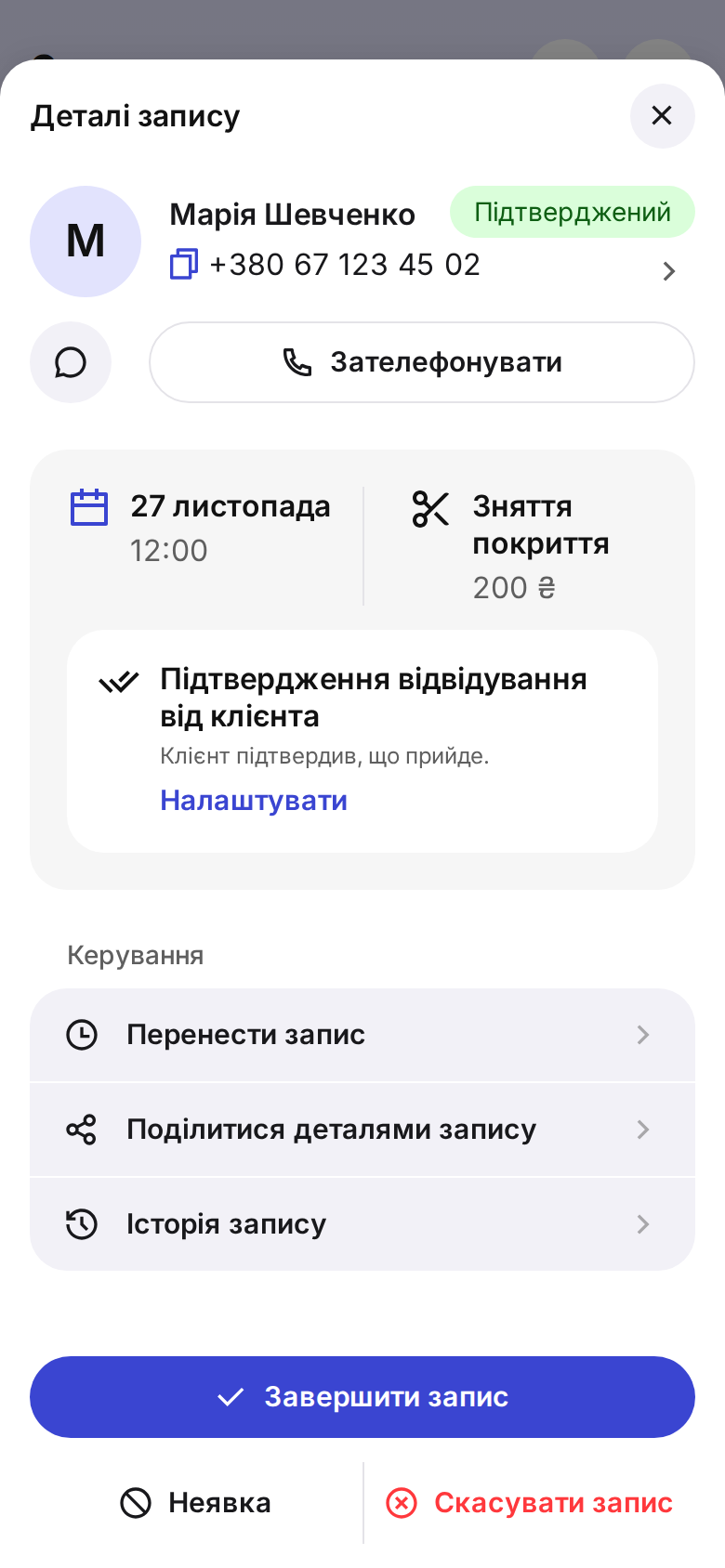
Tap an appointment in the Appointments list or on the home screen to open Appointment details. You’ll see the client, service, date, price and status, plus the action buttons.
Attendance confirmation
Fyveno asks the client to confirm the visit in the Telegram bot. The result is shown in the appointment details under Attendance confirmation from the client:
- Request sent; waiting for the client’s reply.
- The client confirmed they’ll come — the appointment becomes confirmed.
- The client said they can’t come. The appointment stays active until you cancel it. If you need the time back, cancel the appointment yourself.
- No reply from the client. The appointment stays active.
The request only reaches clients with a notification channel connected (currently Telegram).
Complete an appointment
When an appointment’s time has passed, Fyveno marks it as Completed automatically. To complete a visit earlier, tap Complete appointment in the details and confirm.
Mark a no-show
If the client didn’t come, tap No-show in the appointment details and confirm.
No-shows count towards the client’s online booking rule: Fyveno limits the number of future online bookings for clients who often don’t show up.
Cancel an appointment
- In the appointment details, tap Cancel appointment.
- Keep or clear Fill the free slot. If it stays checked, Fyveno starts looking for a replacement for this time right away. See How the waitlist works.
- Confirm the cancellation.
Whether the checkbox is on by default depends on the Fill the slot automatically setting. See Auto-replacement settings.
When the client cancels or reschedules themselves, Fyveno always looks for a replacement, regardless of this setting.
Reschedule an appointment
- In the appointment details, tap Reschedule appointment.
- Choose the new date and time.
- Tap Confirm reschedule.
If a status is wrong
- Correct outcome — for completed appointments and no-shows. Choose the right outcome, enter a reason and tap Confirm correction.
- Restore appointment — for a cancelled appointment whose time hasn’t come yet. It becomes active again at its original time. Before restoring, Fyveno checks that the time is still free.
Every change is recorded in the Appointment history.