How the waitlist works
How Fyveno automatically fills cancelled appointments — requests, offers, auto-replacement and freed slots.
When a client cancels, a free slot opens in your schedule. Fyveno offers this time to other clients on its own. Whoever accepts first gets the slot. This is auto-replacement.
To open the waitlist: Profile → Waitlist.
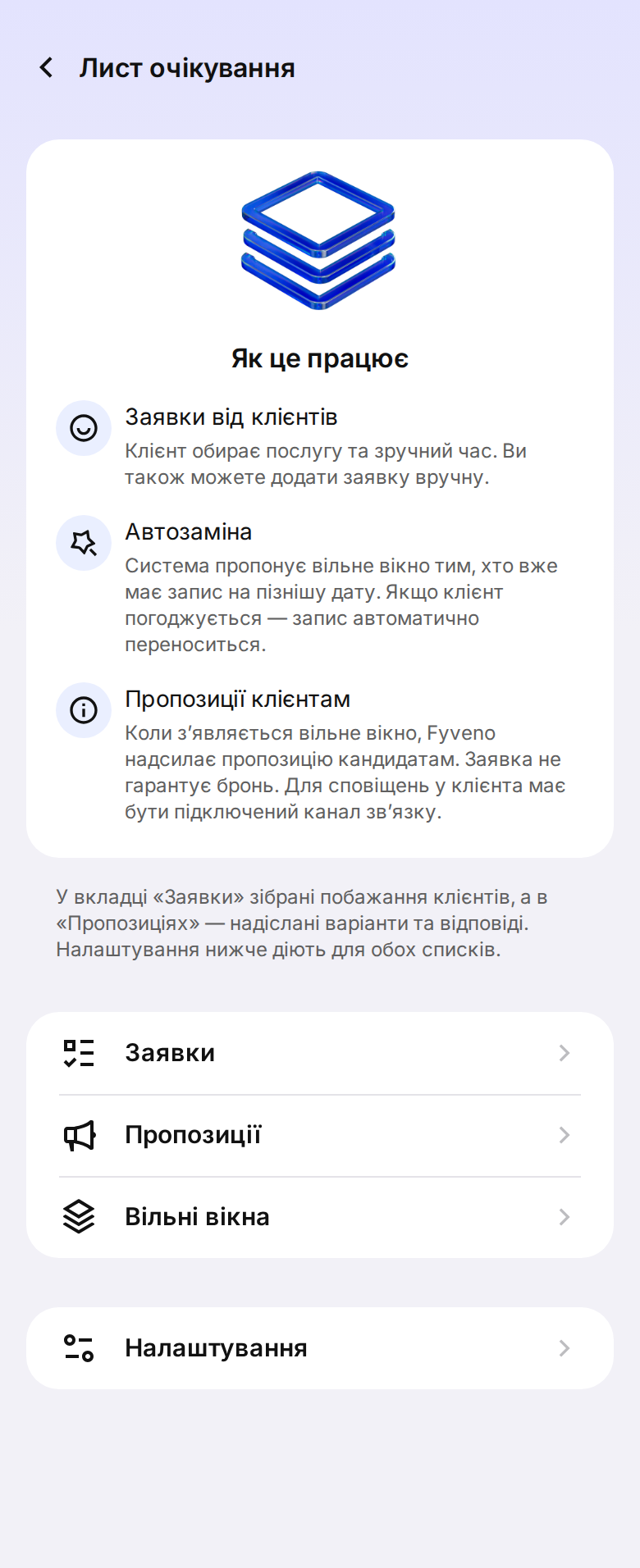
Who gets offered a free slot
There are two kinds of candidates:
- Clients with requests. A client picks a service and a convenient time and joins the waitlist. When a matching time frees up, Fyveno invites them, and a new appointment is created once they agree.
- Clients already booked later. Fyveno offers them an earlier time. If the client agrees, their appointment moves to the freed time automatically.
Clients with requests come first. Among clients booked later, those with the same service and a closer appointment date rank higher.
Offers arrive in the client’s Telegram bot with Accept and Decline buttons. So only clients with a connected notification channel and replacement offers turned on can receive them.
How a replacement happens
- An appointment is cancelled, or the client moves it to another time.
- Fyveno finds candidates and sends the offer to several of them at once. The Maximum candidates setting decides how many.
- The first to tap Accept gets the slot. The others see that the offer is no longer available.
- If the slot is taken by a client who moved a later appointment, their old time frees up in turn, and Fyveno starts a new search for it.
An offer is valid for a limited time. It closes no later than the Minimum notice before the visit, so the client has time to get ready and travel, and no later than 12 hours after it was sent.
A request doesn’t guarantee a booking
The client only gets an offer if a time matching their request frees up.
Requests
Waitlist → Requests lists your clients’ wishes: service, preferred dates and hours, comment.
A client leaves a request on your booking page with the I want earlier button, or in the Telegram bot. You can also add one manually. Tap +, choose the client and service, optionally set Start date, End date, Time from and Time to, then tap Create request. Empty fields don’t limit the search.
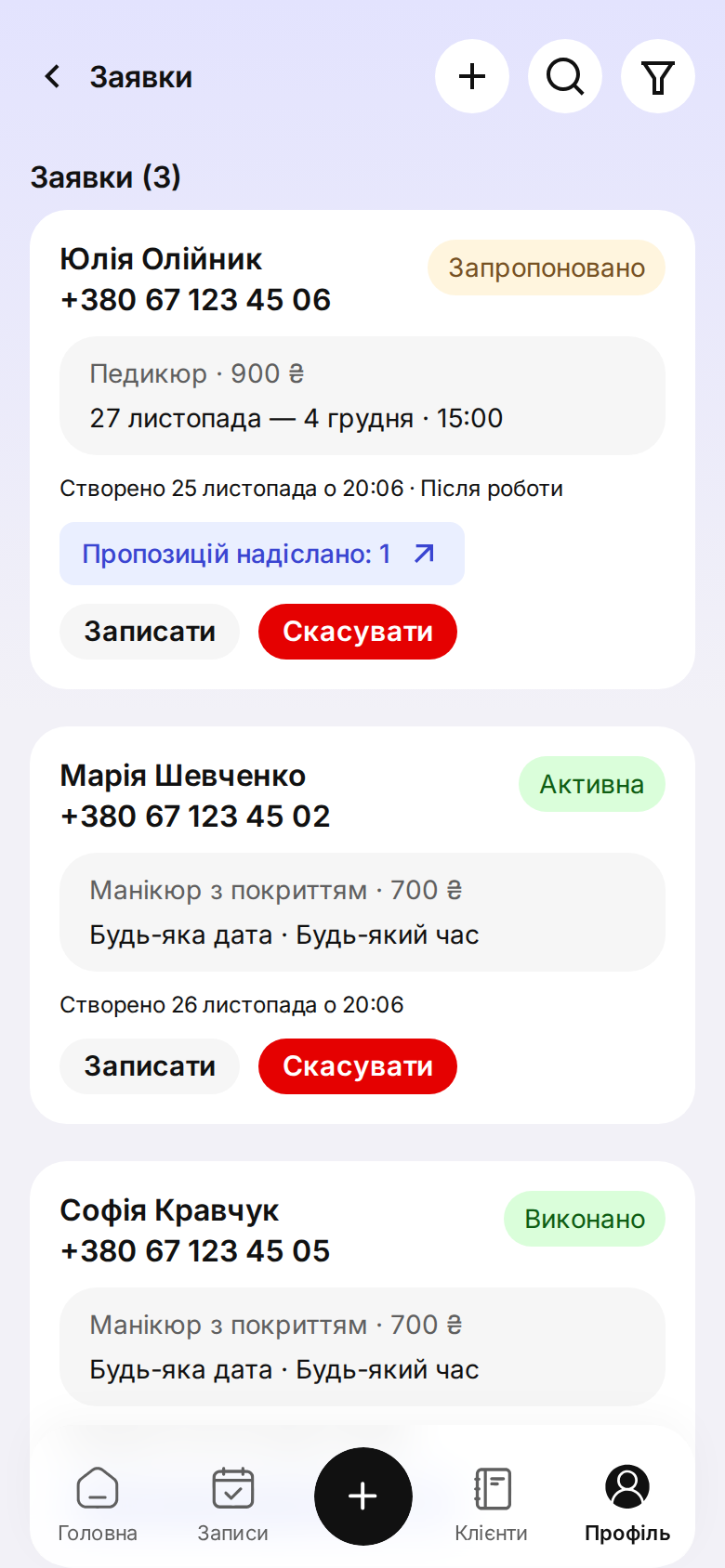
Request statuses: Active, Offered, Fulfilled, Cancelled, Expired.
From a request you can:
- Book — create an appointment for this client right away;
- Cancel — the client stops receiving offers for this request.
Offers
Waitlist → Offers shows every offer sent and how clients replied. The Awaiting reply tab shows offers that are still open; History shows finished ones.
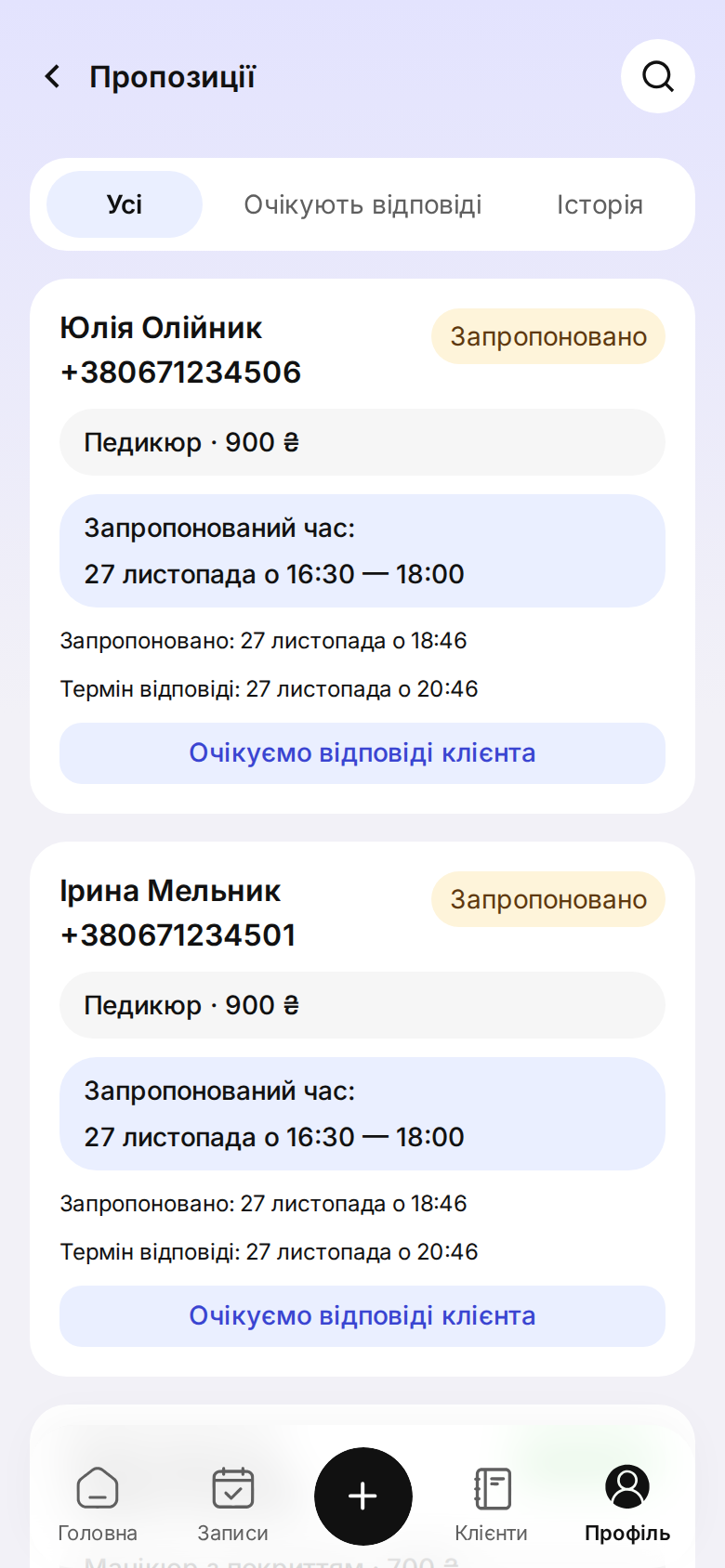
| Result | What it means |
|---|---|
| Waiting for the client’s reply | The offer is sent; the client hasn’t replied yet. |
| Offer accepted | The client took the slot. |
| Client declined | The client tapped Decline. |
| Offer time expired | The client didn’t reply in time. |
| Offer no longer available | Another client already took the slot. |
An accepted offer shows what happened: Slot filled by a waitlist client or The client moved their appointment to this time.
Freed slots
Waitlist → Freed slots lists slots that opened after a cancellation or reschedule, and what happened to them.
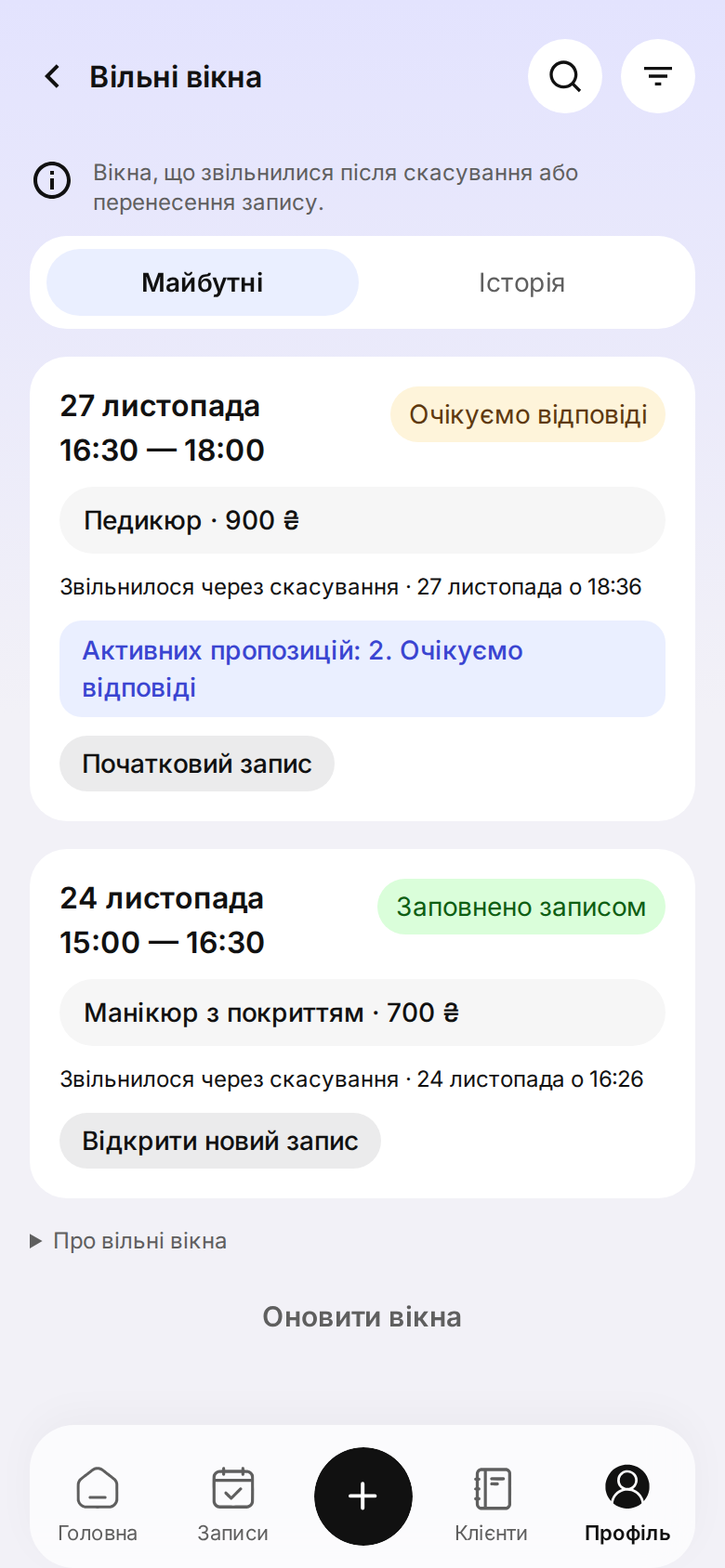
| State | What it means |
|---|---|
| Free | The slot is free; there are no active offers. |
| Waiting for reply | Offers are sent; waiting for clients. |
| Filled by an appointment | A new appointment took the slot. |
| Fully or partly taken | Another appointment is already at this time. |
| Time blocked | You’ve closed this time. |
| Outside working hours | The time is no longer in your schedule. |
| Time has passed | The slot is in the past. |
This isn’t every free hour in your calendar — only slots freed by cancellations and reschedules.
Where to see the results
- On the home screen: how much was saved over the last 30 days and which appointments are being replaced right now.
- In Statistics, on the Auto-replacement tab. See Statistics explained.
An accepted offer isn’t revenue yet. The amount is added to Recovered revenue only after the replacement visit is completed.
Appointment statuses
What the New, Confirmed, Completed, Cancelled and No-show statuses mean, and how to complete, cancel, reschedule or correct an appointment.
Auto-replacement settings
How to set up auto-replacement in Fyveno — candidate search depth, minimum notice, maximum candidates and who gets offered a free slot.