Auto-replacement settings
How to set up auto-replacement in Fyveno — candidate search depth, minimum notice, maximum candidates and who gets offered a free slot.
To open the settings: Profile → Waitlist → Settings. They apply to both requests and offers.
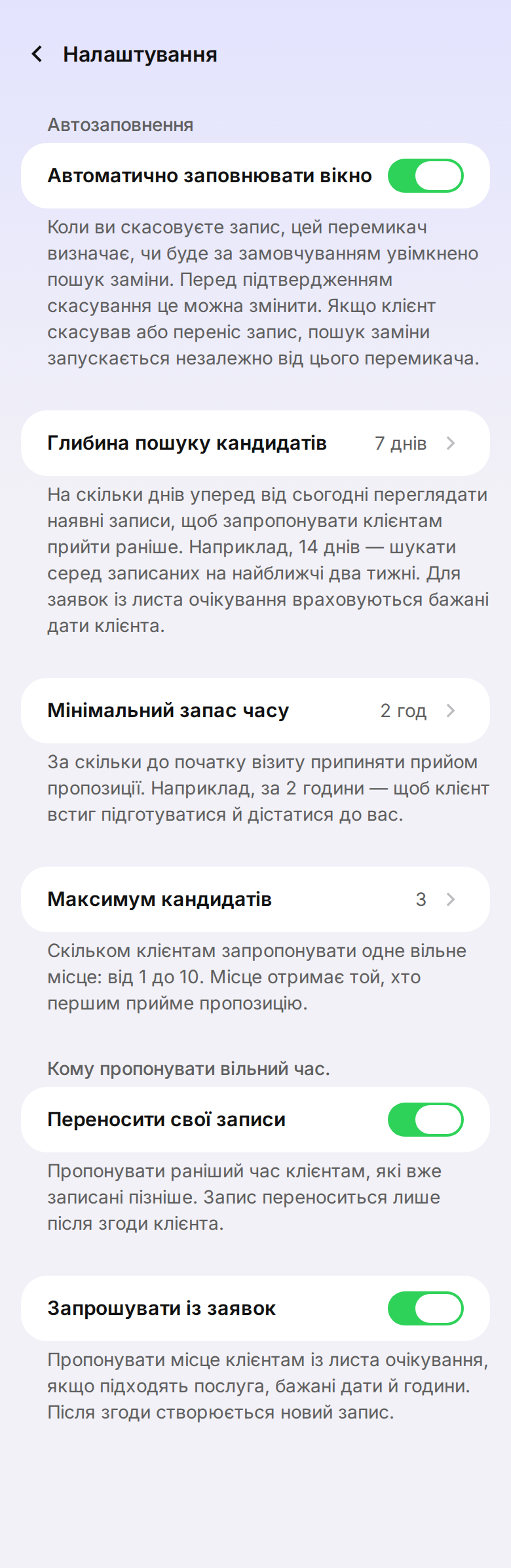
Auto-fill
Fill the slot automatically decides whether a replacement search is on when you cancel an appointment. Before confirming a cancellation, you can still change the Fill the free slot checkbox for that appointment.
When a client cancels or reschedules, the replacement search always starts, regardless of this switch.
Candidate search depth
How many days ahead from today to look through existing appointments to offer clients an earlier time. For example, 14 days means searching among clients booked for the next two weeks.
Options: Today, 3 days, 7 days, 14 days. Default: 7 days.
For waitlist requests, the client’s preferred dates are used instead of this setting.
Minimum notice
How long before the visit to stop accepting an offer. For example, 2 hours gives the client time to get ready and travel to you.
Options: 30 minutes, 1 hour, 2 hours, 3 hours, 6 hours, 12 hours. Default: 2 hours.
Maximum candidates
How many clients to offer one free slot to: from 1 to 10. The slot goes to whoever accepts first. Default: 5.
More candidates means a better chance to fill the slot quickly. Fewer candidates means fewer clients get an offer that may already be taken.
Who to offer free time to
- Move existing appointments — offer an earlier time to clients already booked later. The appointment only moves after the client agrees.
- Invite from requests — offer the slot to waitlist clients when the service, preferred dates and hours match. A new appointment is created once they agree.
If you turn both switches off, Fyveno will have no one to offer free time to.
Offers for a specific client
You can turn off replacement offers for one client: open their profile, go to Client notifications and turn off Offer free slots to the client.
Only clients with a connected notification channel (currently Telegram) receive offers. If a client isn’t connected yet, send them a link from their profile: Client notifications → Create a Telegram link.