Online booking settings
How clients book online through your page and the bot, and how to set the slot step, minimum notice, booking horizon and booking frequency.
Clients can book with you on their own, through your booking page or the @fyveno_client_app Telegram bot.
To open the settings: Profile → Online booking.
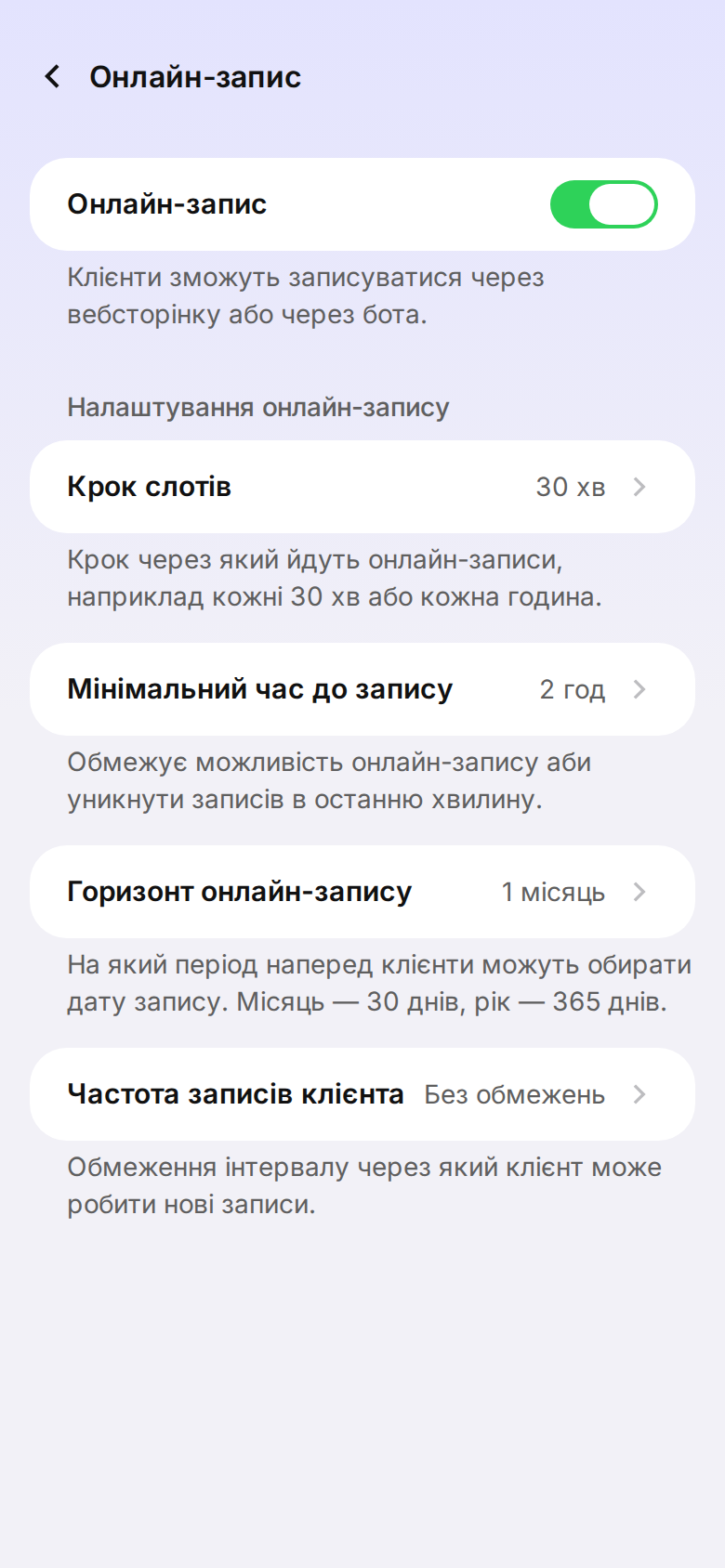
Turn online booking on
The Online booking switch opens booking through your page and the bot. If you turn it off, clients can’t book on their own. You can still book them manually.
Only services marked Available for online booking can be booked online. You can change this in Profile → Services.
Slot step
The step at which clients are offered booking times. For example, every 30 min or every hour.
Options: from 10 min to 3 h. Default: 30 min.
Minimum notice before booking
Limits online booking to avoid last-minute appointments. For example, with 2 h set, at 10:00 a client can book 12:00 at the earliest.
Options: No limit, 15 min, 30 min, 1 h, 2 h, 3 h, 6 h, 12 h.
Booking horizon
How far ahead clients can choose a date. A month is 30 days, a year is 365 days.
Options: 1 month, 2 months, 3 months, 6 months, 1 year.
Client booking frequency
How often one client can make new bookings. For example, No more than once a day.
Options: from No limit to No more than once a month.
These settings only apply to bookings that clients make themselves. You can book a client manually under the usual availability rules.
How a client books
Share your personal link with clients. You can copy it on the home screen or in Profile → Web page.
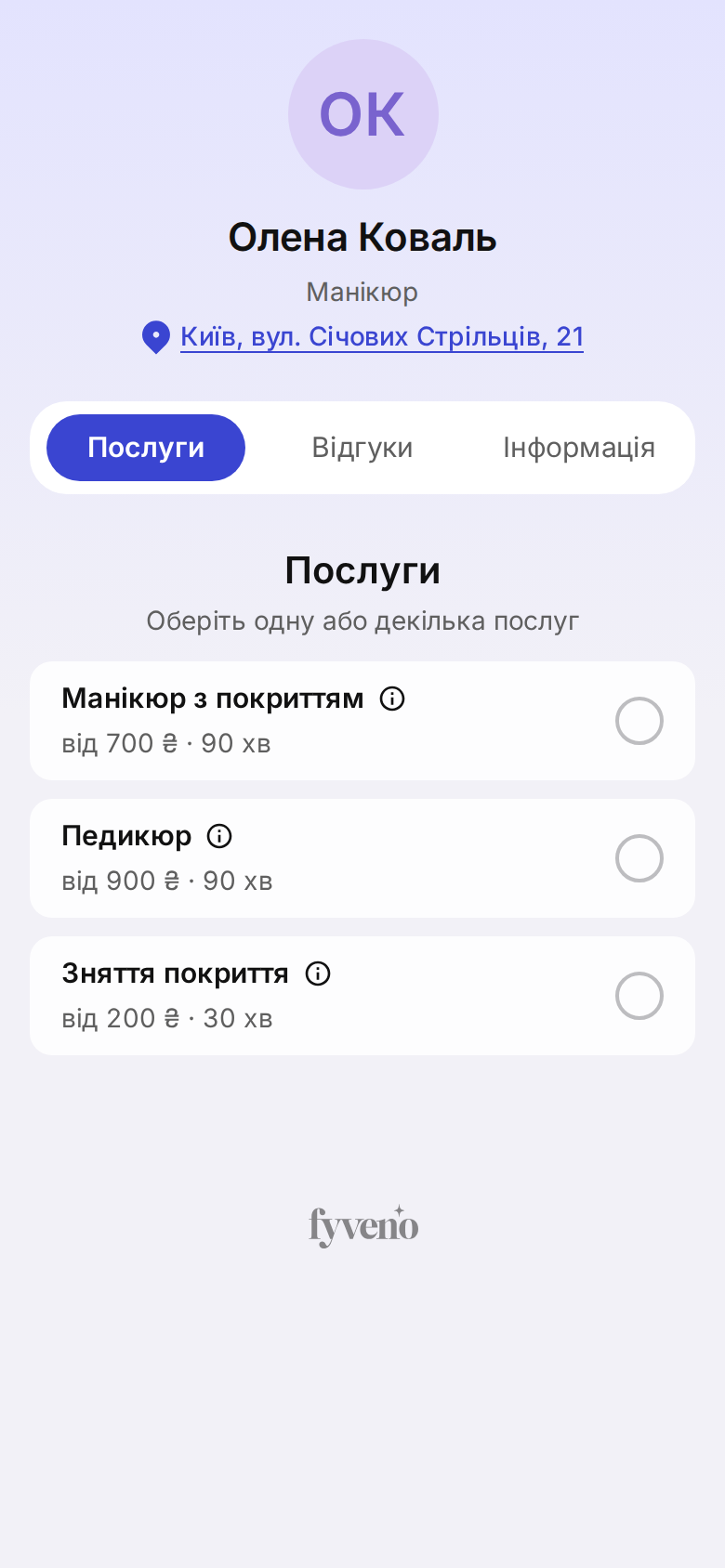
- The client opens your page and picks one or more services (up to 8 per visit).
- They choose a date and a free time. Fyveno only shows times that fit your schedule and the settings above.
- They go to the Fyveno Telegram bot and confirm the booking there. On their first booking, the client confirms their phone number.
Until the client confirms in the bot, the time isn’t reserved. The confirmation link is valid for a limited time.
Once confirmed, the appointment appears in your Appointments and you get a notification. The client sees their bookings in the bot under My bookings.
If there’s no free time, the client can tap I want earlier and leave a waitlist request. See How the waitlist works.
Limits for clients
A client can have at most two active future online bookings with you. For clients with no-shows in the last 180 days, Fyveno limits online booking further. You can change the rule for a specific client in their profile, under Online booking rule.
Auto-replacement settings
How to set up auto-replacement in Fyveno — candidate search depth, minimum notice, maximum candidates and who gets offered a free slot.
Statistics explained
What each number in Fyveno statistics means — recovered revenue, filled cancellations, potentially lost revenue, appointments at risk and more.